If you need quick support from TheBeeHost team, using a ticket is the way to go! Our team is available 24/7 to help you out.
Step 1: Log in to Your TheBeeHost Account
1. Login to your TheBeeHost account using your registered email address and password.
2. In the left sidebar, expand Support and then click Tickets.

Step 2: Opening a Ticket
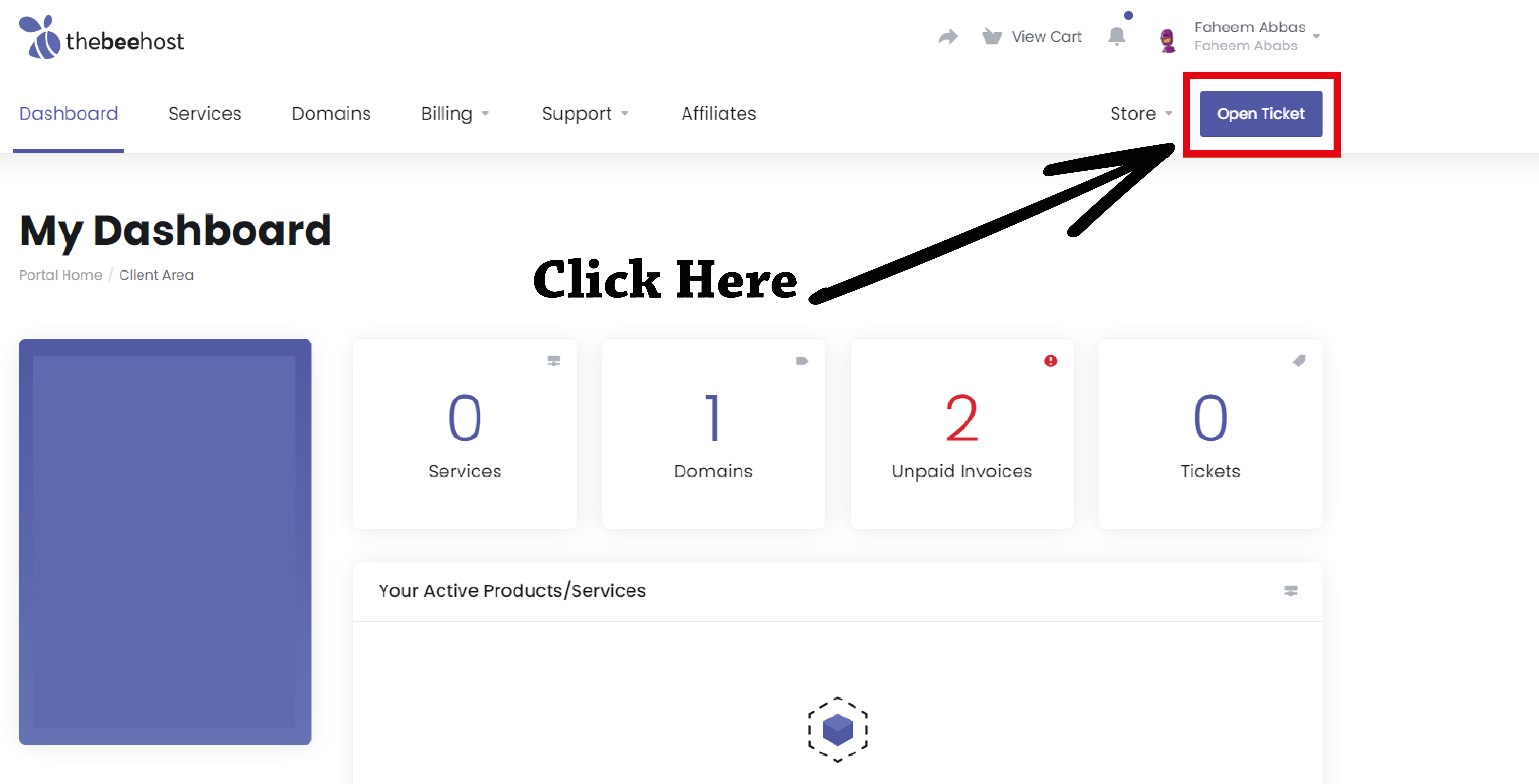
1. Click on the “Open Ticket” button.

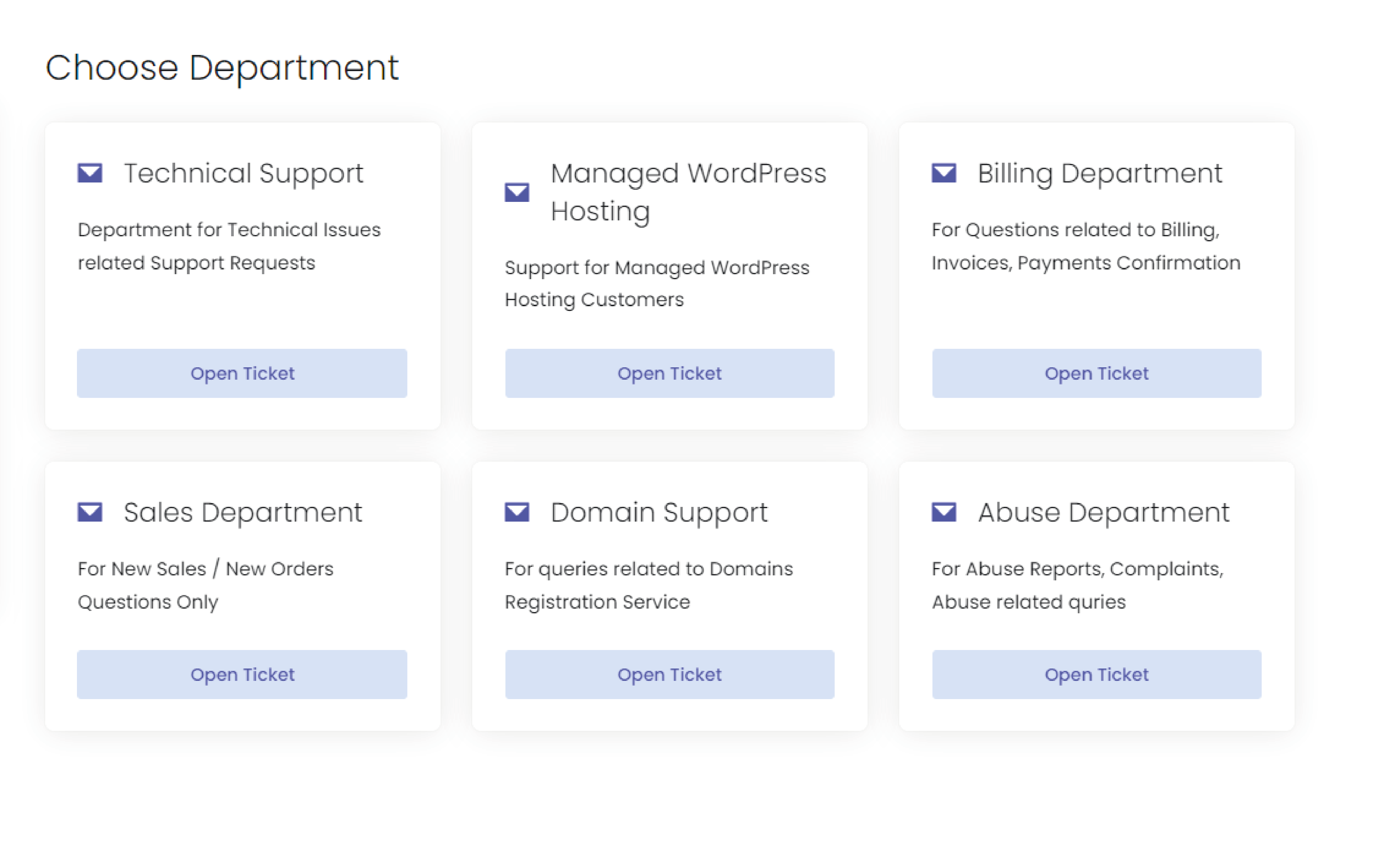
2. Now, choose the area or department related to your query.

Step 3: Describe Your Issue
To help our team assist you as quickly as possible, please complete all required fields carefully when opening your ticket.
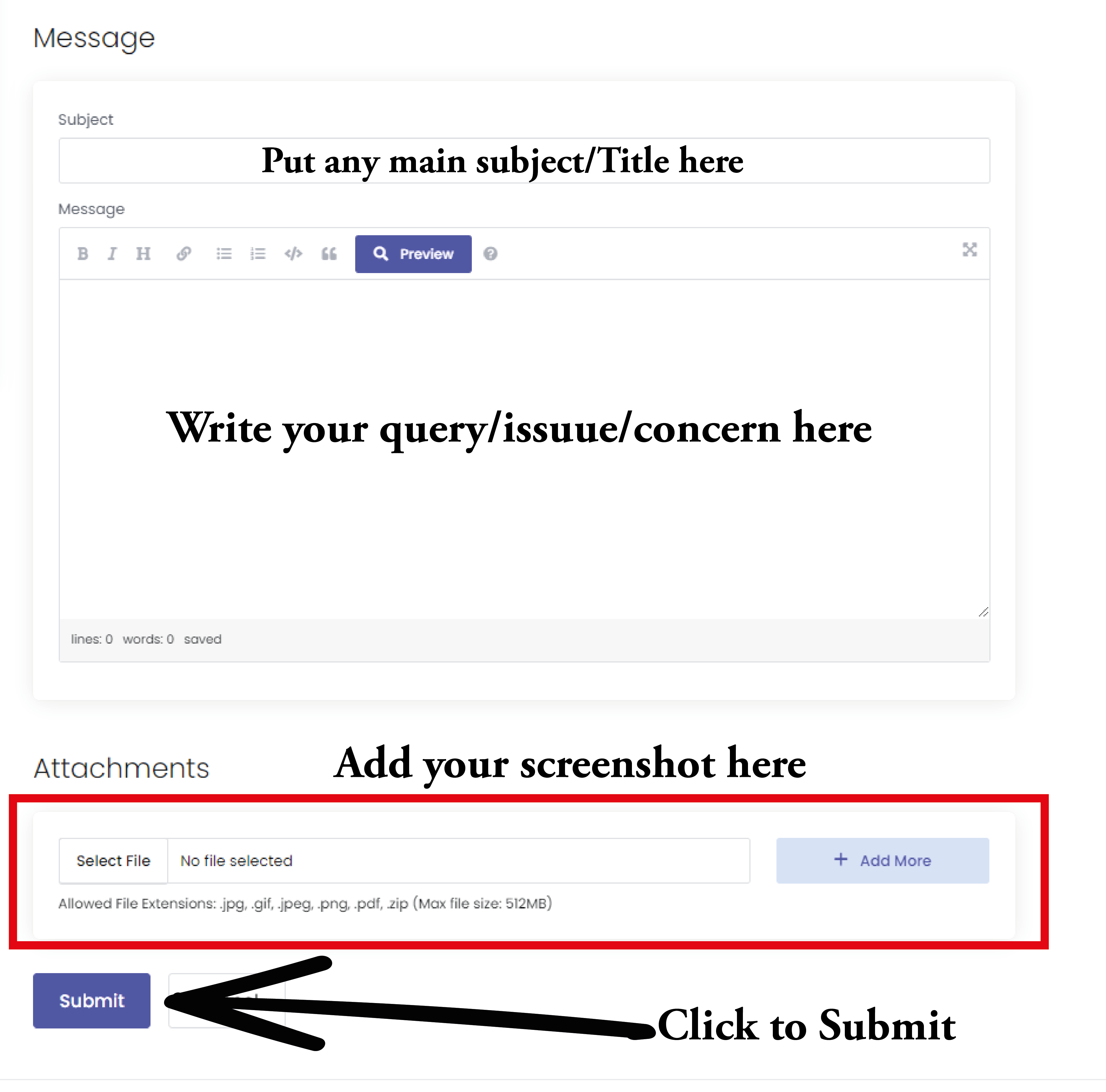
1. Summary
This is a short title (subject) for your issue.
Examples:
- “Website showing 500 Internal Server Error”
- “Unable to send emails from Webmail”
- “Domain not resolving after nameserver update”
2. Priority
Select the urgency level of your issue based on its impact:
| Priority Level | Description |
|---|---|
| Low | General question or non-urgent request. |
| Medium | Minor issue with limited impact. |
| High | Service partially unavailable or significantly affected. |
| Critical | Major service disruption affecting business operations. |
| Emergency | Complete outage (website/email fully down). |
Please choose the priority responsibly.
3. Related Service
Select the specific service your issue relates to. This helps us route your ticket to the correct department quickly.
Examples:
- Select your Hosting Account if the issue is about website errors, emails, cPanel, etc.
- Select your Domain Name if the issue is related to DNS, nameservers, or domain management.
If you’re unsure, choose the service most closely connected to your issue.
4. Details
This is where you describe your issue in full. Please include:
- The exact domain name
- Error messages (copy/paste if possible)
- Steps to reproduce the issue
- Screenshots (if available)
- What troubleshooting steps you’ve already tried
The more details you provide, the faster we can resolve your issue.

Once you’ve explained everything, hit the “Open Ticket” button to send your ticket.

Remember: “A problem well stated is a problem half solved.”
Step 4: Ticket Submitted!
Congratulations! Your ticket has been sent to our team. Now, you can:
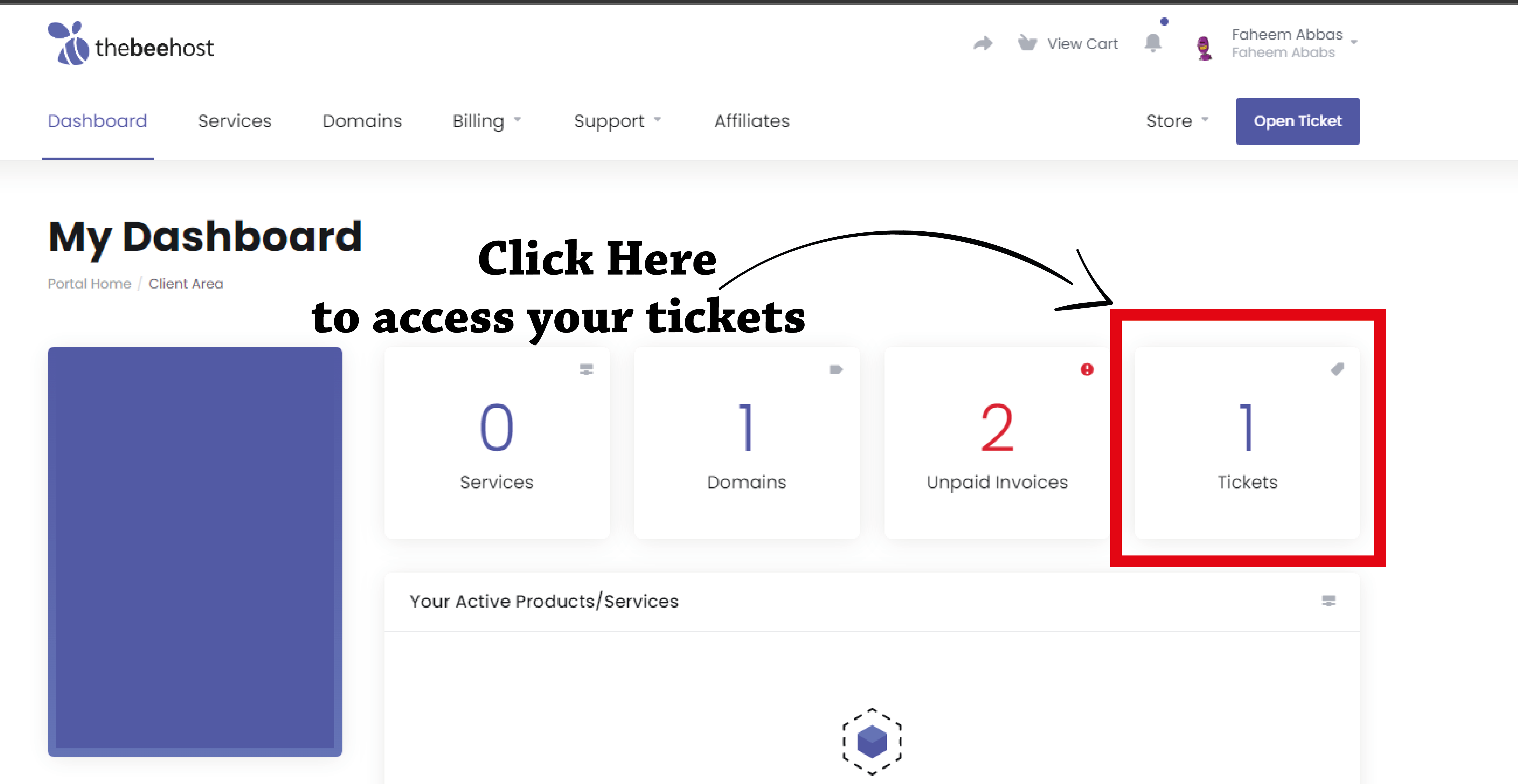
- Check all your tickets in your account.
- Read our team’s responses and replies in the backend.
For any further assistance, feel free to reach out. We’re here to help!